

Chinese Converter
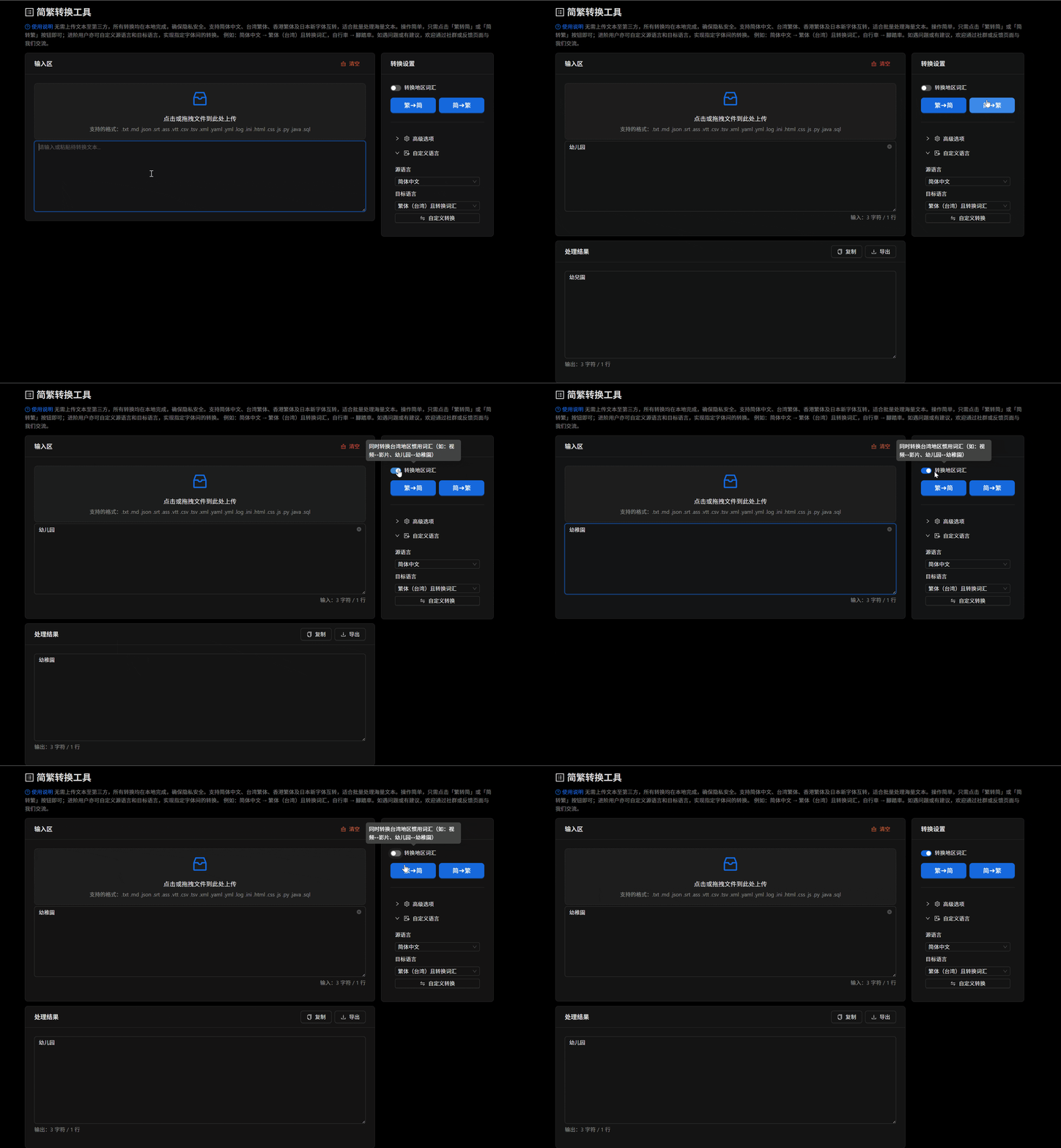
Chinese Converter is a fully-local Chinese text converter supporting Simplified, Traditional (Taiwan / Hong Kong / OpenCC mode), and Japanese Shinjitai — any direction. It exposes two quick buttons (Trad→Simp, Simp→Trad), a Custom Language card for arbitrary pairs, a user-editable protected dictionary, and batch file processing.
Supported language codes
The tool uses 6 internal codes:
Page layout
Two columns:
- Left: input area (upload + textarea) + two quick buttons + result card
- Right: Conversion Settings + Custom Language + Protected Dictionary panel
Quick conversion (left column)
Two primary action buttons:
- Trad → Simp: from some Traditional form to Simplified
- Simp → Trad: from Simplified to some Traditional form
Which Traditional variant is used depends on the Regional Vocabulary toggle on the right:
Custom Language (right column)
For other combinations (tw↔hk, t↔jp, etc.):
- Pick the Source Language from the dropdown
- Pick the Target Language from the dropdown
- Click Custom Convert
⚠️ Note: when a custom pair doesn't touch Simplified (e.g. tw↔hk), the protected dictionary doesn't apply. If you have rules defined, the tool shows a "rules inactive" hint.
Conversion Settings (right column)
Four toggles:
- Regional Vocabulary: controls the Traditional variant used by quick buttons (see table above). The Custom Language card is unaffected.
- Smart Line Break: re-merge wrap-broken lines based on Chinese end-of-sentence punctuation (OCR cleanup helper)
- Single-File Mode: process one file at a time; uploading a new file replaces the current one
- Auto-Export After Conversion: skip the preview and directly download the result — useful for batch runs
Protected Dictionary
The tool's power feature — a user-editable list of terms that should NOT be converted.
How it works
- s2t rules: applied during Simp→Trad (
fromis Simplified word,tois the Traditional form to preserve) - t2s rules: applied during Trad→Simp
- The two rule sets are stored and managed independently
When it's applied
The protected dictionary only applies when one side is Simplified:
- ✅
cn → tw/twp/hk/t/jp→ applies s2t rules - ✅
tw/twp/hk/t/jp → cn→ applies t2s rules - ❌
tw ↔ hk,t ↔ jpand other pure-Traditional pairs → dictionary skipped - ❌ When the master toggle is off → no rules applied
Managing rules
Click "Manage Rules" on the Protected Dictionary panel (bottom-right) to open the drawer:
- Switch between s2t / t2s direction tabs
- Add, edit, delete individual rules (from → to)
- Batch import / export (the dictionary is shared with the Novel Processor tool)
Typical use cases
- Force "机器人" (robot) to stay as "机器人" during Simp→Trad instead of becoming "機器人" (common tech term where 机 is correct)
- Preserve Simplified forms of brand names regardless of conversion direction
- Add Traditional-form proper names to t2s rules to prevent incorrect simplification
File upload
- Drag-and-drop or click; supports
.txt,.csv,.json,.mdand other rich-text formats - Multi-file by default — drop a batch and process them all at once
- In multi-file mode the textarea is hidden; each file exports under its original name
Result card
After single-file conversion, the result card appears with:
- Copy: one-click clipboard
- Export: download under the original filename (or
jianfan.txt) - Edit in place: modify the result text directly
With "Auto-Export" enabled, the preview is skipped and the result downloads immediately.
Use cases
- Document localization: sync content across Mainland / Taiwan / Hong Kong audiences
- OCR cleanup: pair with Smart Line Break to repair scanned text
- Academic / classical texts: use the protected dictionary to preserve proper names and technical terms
- Content creation: publish blogs and novels in both Simplified and Traditional versions
- Batch data: process
.json/.csv/ multiple TXT files containing Chinese fields
Why local-only?
Built on js-opencc (a JavaScript port of OpenCC) with dictionaries synced from upstream. Runs entirely in your browser — files never leave your machine, safe for sensitive material.