

head:
-
- meta
- property: og:title content: Novel Processor - Batch Repair Web-Novel Layout, Trad/Simp Conversion, Chapter Reorder | Tools By AI description: Web novel layout messy and full of ads? One-click fix for line breaks, chapter titles, Trad/Simp conversion, ad removal — plus chapter reorder and protected dictionary. Batch processing, runs locally in your browser. faq:
- q: What common novel-format issues does it fix? a: Smart line break (re-merge broken lines), paragraph indent, chapter title formatting, full-width → half-width, Trad/Simp conversion, ad/downloader watermark cleanup, line-end digit stripping, adjacent duplicate-line removal. Every step is an independent toggle inside the three collapsible config sections on the right.
- q: What's the difference between "Chapter Split" and "Chapter Reorder" buttons? a: "Chapter Split" only breaks inline-written chapter titles onto their own lines — a lightweight pre-processing pass that leaves everything else untouched. "Chapter Reorder" sorts the entire novel by the numeric chapter index extracted from each title (第十二章, Chapter 5, etc.), useful for downloads with scrambled chapter order.
- q: How do "Filter Words" and the "Filter Threshold" work together?
a: Filter Words accepts comma-separated keywords (e.g.
channel,downloader,group) — every line containing any of them is removed. To avoid wiping legitimate text, set Filter Threshold to N → lines longer than N characters are exempt (kept even if they match a keyword). 0 disables the exemption. This lets you clean short watermark lines while preserving long body paragraphs. - q: What's the "Protected Dictionary" and is it related to the Chinese Converter? a: Yes — both tools share the same protected dictionary (same localStorage key). It defines terms that should NOT be converted during Trad/Simp transformation. It only applies when Trad/Simp conversion is actually enabled in Advanced Settings (set to t2s or s2t). When set to "None", the panel shows a "rules inactive" hint.
- q: Is anything uploaded to a server? a: No. The entire pipeline runs in your browser — files never leave your machine. appUrl: https://tools.newzone.top/en/novel-processor appName: Novel Processor
Novel Processor
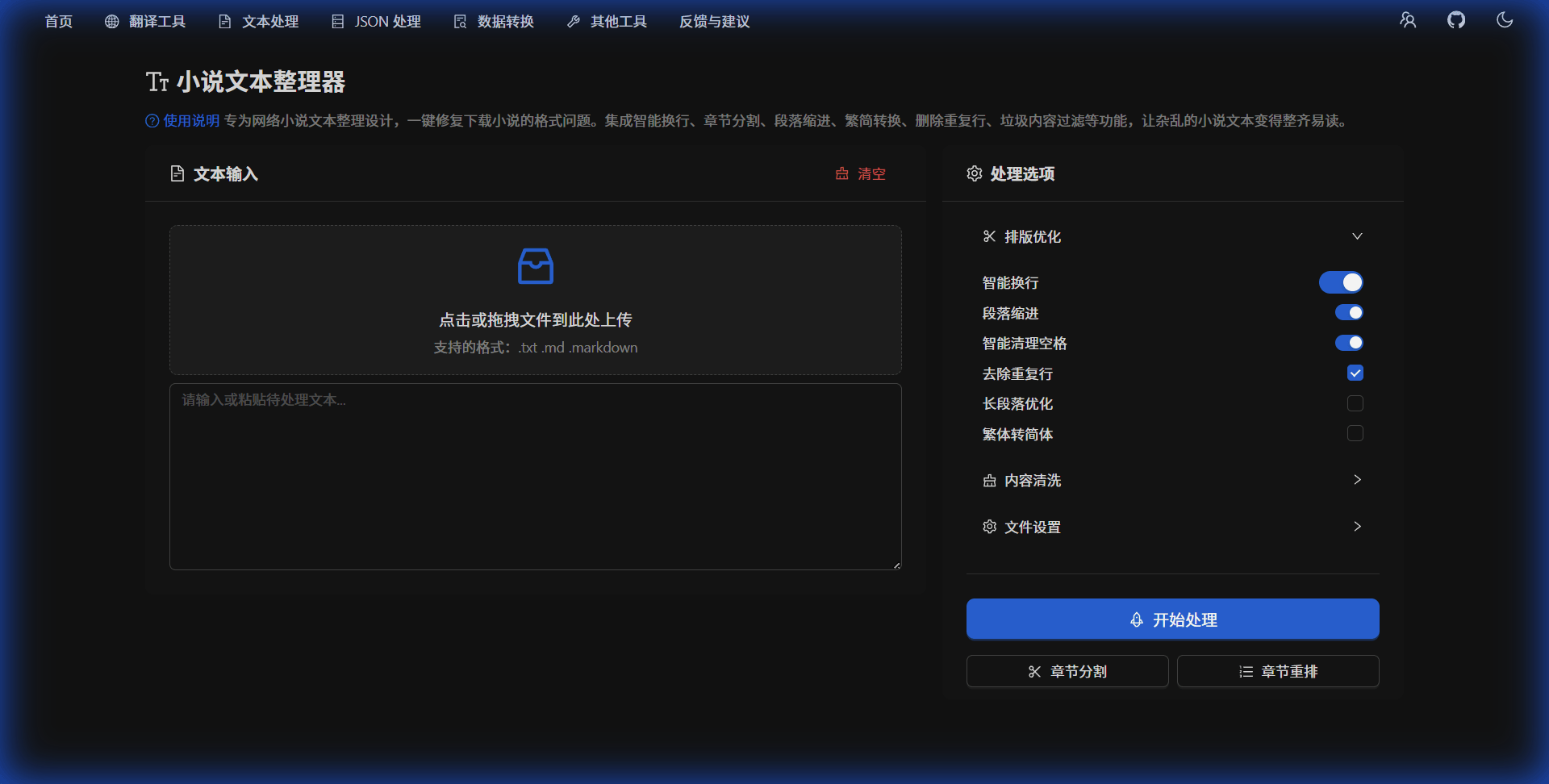
Novel Processor is a one-stop cleanup tool built for web novels, e-books, and other long-form text. It auto-repairs formatting issues, strips ads, normalizes chapter titles, reorders by chapter index, and optionally does Trad/Simp conversion — turning chaotic novel text into something clean and readable.
What problems does it solve?
Typical pain points with downloaded novels:
- Messy layout: paragraphs not separated, chapters running together, scattered blank lines
- Ad watermarks: downloader stamps, group-promotion lines, "split-volume reading" markers
- Inconsistent format: mixed Trad/Simp, full-width vs half-width chaos
- Broken line wrapping: sentences split mid-line, paragraphs broken at the wrong spots
- Chapter ordering: scrambled tables of contents, chapter titles without line breaks
Page layout
Two columns:
- Left: file upload + text input + three primary action buttons + result card
- Right: three-section configuration Collapse + Protected Dictionary panel
Left column: input & actions
File upload
- Drag-and-drop or click; supports TXT, MD, and other text formats
- Multi-file mode by default — drop an entire novel collection at once
- In Single-File Mode (toggle in Advanced Settings), uploading a new file replaces the current one
Three primary action buttons
When done, the result is auto-copied to clipboard and shown in the result card.
Right column: three-section configuration
1. Typesetting (expanded by default)
- Smart Line Break (on): detect paragraph boundaries via Chinese punctuation, pure-numeric lines, and special starters; re-merge broken sentences
- Sub-toggle Paragraph Indent (visible only when Smart Line Break is on, default on): add
\tto each paragraph head — gives book-style typography
- Sub-toggle Paragraph Indent (visible only when Smart Line Break is on, default on): add
- Paragraph Split (off by default): break long paragraphs into shorter ones via sentence detection (compromise English NLP + Chinese punctuation rules) — better for mobile reading
2. Content Cleaning (collapsed by default)
- Chapter Title Formatting (on): recognize "Chapter X" / "第X章" patterns and normalize them
- Strip Line-End Digits (off): remove trailing digits only on lines ≥ 10 chars (avoids stripping years from short titles)
- Trim Spaces (on): strip leading/trailing whitespace per line
- Remove Adjacent Duplicates (off): drop only consecutive duplicate lines (not full-text dedup — preserves common short dialogue like "嗯" / "好")
- Special Start Text: enter the novel title or a recurring header word — matching lines are forced into their own paragraph (prevents incorrect merging)
- Filter Words + Filter Threshold:
- Filter Words: comma-separated keywords (
channel,downloader) — every matching line gets dropped - Filter Threshold: lines longer than N chars are exempt (kept even if they match) — protects body paragraphs. 0 disables the exemption.
- Filter Words: comma-separated keywords (
3. Advanced Settings (collapsed by default)
- Trad/Simp Conversion Segmented:
- None → skip this step
- Trad → Simp → uses
tw → cn - Simp → Trad → uses
cn → tw
- Single-File Mode: one file at a time
- Auto-Export (visible only in single-file mode): skip preview and download directly
Protected Dictionary (shared with Chinese Converter)
Bottom-right of the page:
- Master toggle: enable / disable all rules
- Shows current s2t / t2s rule counts
- Manage Rules button: opens the drawer to add/edit/delete rules, plus batch import/export
- Inactive hint: if Trad/Simp conversion is set to "None", the panel shows a "rules currently inactive" hint
The dictionary is shared with the Chinese Converter tool (same localStorage key) — edit in one place, applies in both. Only participates in processing when Trad/Simp conversion is actually enabled in Advanced Settings.
Full pipeline (Start Process button)
The complete pipeline triggered by the main button:
- Trad/Simp conversion (if enabled): applies the appropriate protected rules
- Normalize newlines + strip novel artifacts: unify
\r\n→\n, remove common downloader watermarks /分卷阅读markers / horizontal-rule lines - Full-width → half-width: normalize Latin letters, digits, and punctuation
- Chapter mark formatting: replace colons in
第X章:with spaces, compress redundant spaces around chapter markers - Chapter split (if enabled): break inline-written chapter titles
- Keyword filtering (if filled): drop lines matching keywords (subject to threshold exemption)
- Line-end digit stripping (if enabled): strip trailing digits on long lines
- Paragraph splitting (if enabled): break long paragraphs
- Smart line break / paragraph indent: re-merge broken sentences, add paragraph indent, collapse extra blank lines
Result card
After processing:
- Auto-copied to clipboard
- Copy / Export / Edit in place: same as Chinese Converter
- Result → Source: pipe the result back into the input for further processing (rare)
With "Auto-Export" enabled, the preview is skipped and the file downloads immediately.
Tips
First-time use
- Test on a small slice (1-2 chapters) first; tune the config before processing the full book
- Start filter words with 1-2 obvious watermark terms; expand the list after verifying
Power moves
- Filter Threshold is the key trick: set it to ~50 (or the average paragraph length) to surgically delete short watermark lines while keeping long body paragraphs
- Run Chapter Reorder standalone: when you only want to fix chapter order, click Chapter Reorder directly — don't run the full Start Process pipeline
- Pre-edit Protected Dictionary: for novels with rare Trad/Simp-mixed proper names, add them to the dictionary first, then run Start Process
When it shines
- Format-broken text from pirated novel sites
- Novel collections harvested by scrapers / auto-downloaders
- Long-form text from OCR / PDF copying
- Pre-processing before importing into Kindle / Moon+ Reader / Apple Books
Technical note
For deeply-obfuscated watermarks (scrambled-character promotional content), combine Filter Words with Filter Threshold as a first pass. Extremely obfuscated patterns are best handled by the Text Toolbox with a custom regex, then fed back here for layout.
Runs entirely in your browser — no data is uploaded.